






 Log in
How can we help you?

Self Service Actions
Find the right tool or resource using the self-service options below. If you have additional questions, search for answers above or explore the FAQs below for detailed, step-by-step instructions and helpful support.
Select a service below to get started. Services available in Online & Mobile Banking will prompt you to log in. If you're not enrolled, you can sign up at that time. If a service isn't available in Online & Mobile Banking, the link will take you to additional information or instructions.
Select a service below to get started. Services available in Online & Mobile Banking will prompt you to log in. If you're not enrolled, you can sign up at that time. If a service isn't available in Online & Mobile Banking, the link will take you to additional information or instructions.
Select a service below to get started. Services available in Online & Mobile Banking will prompt you to log in. If you're not enrolled, you can sign up at that time. If a service isn't available in Online & Mobile Banking, the link will take you to additional information or instructions.
Stay Informed: Trending Scams & Security Alerts

Summer Scams: How to Protect Your Accounts
Stay secure this summer. Learn how to spot and avoid three rising financial threats, including fake login alerts, Prime Day delivery scams, and seasonal job fraud.

How to Spot Fake Contractor Scams
Don't let a fake contractor turn your dream home into a nightmare. Learn the red flags to spot so you can avoid costly home improvement scams.

How to Identify Fake Job Postings & Employment Scams
Spotting a fake job ad can be tricky, but knowing the signs is your best defense. Read on to learn how to identify and avoid common employment scams.

Beware of One-Time Password Scams
One-time passwords (OTPs) are security features that send a code to the registered mobile number or email of an individual to secure a transaction. Unfortunately, fraudsters have found ways to commit OTP fraud to steal funds. Learn what to be on the lookout for.
Build your financial confidence with helpful articles, calculators, and resources designed to support your goals.
Visit Financial WellnessFrequently Asked Questions
Check your balance anytime to stay on top of your money. Whether you're about to make a purchase or reviewing recent activity, you can view it quickly—especially through Online & Mobile Banking or the mobile app.
Online & Mobile Banking (recommended)
Log in to Online & Mobile Banking to view your balance, recent transactions, and account details all in one place.
Not enrolled in Online & Mobile Banking? Get started!
Set up Quick Balance—no login required
Quick Balance is a feature in the Citadel mobile app that shows your available balance at a glance—no login needed once it’s set up. You can also lock your card or transfer funds right from the widget.
- Open the Citadel mobile app and go to Menu > Quick Balance, then follow the prompts to enable it.
- Once it's enabled, use your device’s steps to add the widget.
Phone (Automated Assistant)
Call Citadel and use our automated assistant, Adel, and say “balance”. You will be asked to verify your identity using your account details.
ATM or Express Banking Machine
You can check your balance at any Citadel ATM or Express Banking Machine, available at most branch locations.
In Person
Visit any branch for help from a representative.
Related Questions
Keeping your contact information up to date with Citadel is essential. In addition to making sure you receive statements and other information from Citadel at the right address, your contact information is also used to secure your account.
If you need to make changes to your address, phone numbers, or email address, online is the fastest and easiest way to do it, and it's available 24/7. Log in to your account with Online & Mobile Banking and access your profile to update your information.
- On Desktop: Select your profile picture or icon (upper right), then Profile.
- On Mobile: Select Menu (bottom right). Scroll down to Settings and select Profile.
You can also make changes to your contact information using any of the options below. Please note that for security reasons, to verify your identity and we are not able to change your contact information over the phone.
- By Video: Chat with us via Video Connect.
- In Person: Visit a Citadel branch.
Remember, Citadel will NEVER call or text you to ask for personal information. If you receive a call requesting private info, hang up immediately and contact us at (800) 666-0191.
Using Card Controls with your Citadel debit or credit card can provide you with peace of mind and help you secure your financial information. You can easily lock or unlock your card, set travel notices and card alerts, and more, all with just a few clicks or taps.
Watch this video on How To Set Up Card Controls or follow the instructions below.
To access these controls, log in to your account in Online & Mobile Banking. If you are not registered for Online & Mobile Banking, you can enroll here.
1. Select the account the card is associated with from the menu. Debit cards are attached to checking and Star Savings accounts, Citadel credit cards are listed under Loans & Credit.
2. Look for the Card Services tab, located directly above transaction information for that account.
Note: If you do not see the Card Services tab, check the account you are accessing. Debit cards are only connected to checking and Star Savings accounts. They are not connected to other accounts such as High Yield Savings or Certificates.
3. You will now have the option to lock and unlock your cards, report your card lost or stolen, set up travel notices, and more.
Check out this article on Credit Card Security Features and be sure to visit our Security Center for more information on how to protect your identity and accounts.
Connecting External Accounts
Adding an external account allows you to link your savings and checking accounts at other financial institutions to your Citadel account. You can add as many external accounts as you need.
Once you set this up, you can transfer funds between those accounts and your Citadel accounts and use your external accounts to make payments on your Citadel loans.
Follow these steps or watch the video on How to Connect Your External Account to see how it’s done.
First, log into your account, then:
- On desktop, select Transfer & Payments from the top menu. There are two ways to add an external account.
→ Select Add External Account to the right of New Transfer
Or
→ Select External Accounts from the menu on the left, then the Add Account tab on the right.
- On mobile, select Transfer/Pay from the bottom menu. Then select Add An External Account
Next, select the financial institution you would like to add and follow the prompts. You can also add the account manually using the financial institution’s routing number and your external account number. Click Continue to verify the account.
Verifying External Accounts
You have two options for verifying external accounts you wish to connect to your Citadel account.
- Instant Verification: You authorize the connection between your accounts by providing your username and password for your external account.
- Micro-Deposits: You authorize the connection between your accounts by providing the exact amount of two small deposits (under $1) from Citadel into your external account.
Instant Verification happens in real time, while using Micro-Deposits may take two to three business days. Both options are safe and secure and enable you to transfer money between your Citadel and accounts. In most cases, there are no additional transfer fees to do this.
Instant Verification
Instant account verification is a safe, secure, and quick way to connect your external accounts to your Citadel account. It happens in real-time without requiring micro-deposits, routing numbers, or bank account numbers.
To use instant verification, you will need to authorize the connection by providing the username and password for the external account. Your login credentials are only used one time to verify your external account and are not retained by our system.
If you do not wish to use your login credentials to verify your account, you can enter your banking information manually and use micro-deposit verification.
Micro-Deposits
Micro-deposits (or trial deposits) are small sums of money transferred online from one financial account to another to verify if the account on the receiving end is the account the sender intended to reach.
If you are using micro or trial deposits to verify an external account:
- Check your external account's recent transactions. You should see two small deposits (under $1) in the account within two to three business days. Note the exact amounts of both micro deposits.
- Log into your Citadel account.
- Select Transfer & Payments (on desktop) or Transfer/Pay from the bottom menu (on mobile).
- Select External Accounts (on desktop, may be marked with an exclamation icon) or Manage External Accounts on mobile.
- Select the External Account marked Pending, then Verify Account.
- Enter the amount of the micro deposits and verify.
- Your external account should now be marked as active and you will be able to transfer between your external and Citadel accounts.
Note: Once the micro deposits are made, you have 14 days to complete the verification process. You will not be able to make transfers to/from your external account until the micro deposits have been verified.
How long does it take for an external account to be approved?
How long it takes for an external account to be verified and accessible varies by the way it is authenticated. If you use Instant Verification, authorization happens in real time and your external account should be available immediately. If you enter an account manually and use micro deposits to verify, the process can take two to three business days.
Delete External Accounts
First, log into your account.
- On desktop, select Transfer & Payments from the top menu, then External Accounts from the menu on the left
- On mobile, select Transfer/Pay from the bottom menu. Select the Manage External Accounts.
Then select the external account you wish to remove and click Delete.
You can use your Citadel credit or debit card with almost any mobile wallet, including Apple Pay.
Watch this video or follow the directions below.
To set up Apple Pay:
- Go into Settings on your mobile device, open Wallet & Apple Pay and select Add Credit or Debit Card.
- Snap a photo of your card or type the numbers manually.
- Enter your expiration date and security/CVV code.
- Agree to the Terms & Conditions.
- You may be asked to verify your card by choosing email, text, or call.
- You can set your Citadel credit or debit card as the default card in your Apple wallet.
- Start shopping. Your Citadel card is ready to use with Apple Pay!
Note: The safety and security of your account information is of the highest importance. As a security measure, you may receive a “verification required” message when adding your card to any mobile wallet. Once verified, an on-screen message will appear stating that the card is ready for use. This verification is part of our multi-layered approach to security in payments.
If you’re experiencing issues setting up Apple Pay, please note the following:
- The address for your Apple Pay and your Citadel credit card must match. If you have updated your contact information within the last 60 days, you may be unable to add your card to Apple Pay without assistance.
- You will need to speak to a representative during normal business hours to validate your card for Apple Pay. You will need to be authenticated to complete the process.
- If you need to make changes to your address, our Video Connect representatives can help you during the verification process. Please have a valid ID ready.
Our after-hours contact center cannot complete the verification process, and you cannot send a secure message to verify your card for Apple Pay.
Direct deposit is a fast, secure way to deposit paychecks, government checks such as tax refunds or Social Security benefits, or other funds such as annuities and dividend payments. In most cases, you will have immediate access to these funds, and since Citadel offers early direct deposit, you'll receive your funds up to 2 days early.*
- If you are setting up a direct deposit for your paycheck from your employer, they may provide either a paper or online form for you to fill out.
- Instructions on setting up direct deposits from the U.S. government, such as tax refunds, military benefits, or Social Security checks, are available at GoDirect.gov.
- You may also supply this information to your tax preparation professional for tax refunds.
- Your financial advisor or planner may need this information to set up direct deposit payments and distributions from retirement accounts.
How to set up direct deposit in Online Banking:
You can set up or adjust your direct deposit in Online & Mobile Banking using our partner, Pinwheel, to connect to your payroll account. Here's how it works:
- Log in to Online & Mobile Banking
- Select the account you want to receive your direct deposits in from the accounts list
- Select 'Manage Direct Deposit', and follow the Pinwheel prompts
Don’t Have Online Banking?
Enroll here. Or, simply provide your Citadel account & routing information to your employer's payroll administrator using our direct deposit form here.
Where to find your account & routing information:
Here's How:
- Select the account you want to receive your direct deposits from the account lists menu. Please note: Certificates are non-transactional accounts and cannot receive direct deposits.
- Look for the ACH(EFT) number on the Account Details tile (desktop) or the Details tab (mobile).
Please note: It may take one or two pay or benefit periods before direct deposit is activated for your account. You can sign up for automatic alerts to let you know when your deposit is available.
What is a qualifying direct deposit?
A qualifying direct deposit is defined as a recurring amount electronically deposited directly into an account from:
- Payroll
- Pension
- Social Security
- Government benefits
- Other regular income
Internal or external transfers from one account to another, mobile deposits, and deposits made at a banking location, ATM, or through Online & Mobile Banking do not qualify as a direct deposit.
The easiest way to manage your Certificate, including setting up maturity options, is by using Online & Mobile Banking.
- Log into your account and look for the certificate in your list of accounts - you may need to scroll down to see it.
- Select CD Maturity Options and choose how you would like the funds disbursed when the certificate matures. Maturity options can be set at any time during the term of the certificate.
- Auto Renew: The entire amount of the matured certificate (original deposit + any earned dividends, minus any penalties or early withdrawals) will be renewed for the same term at the rate current on the maturity date.
For example, a 12-month certificate earning 3.89% APY (Annual Percentage Yield) on a $1,000 investment would earn $38.90 in interest over the year, resulting in a maturity value of $1,038.90. That amount would be rolled into a new 12-month certificate at the rate current on that day.
- Transfer to an existing account: The entire amount of the matured certificate (original deposit + any earned dividends, minus any penalties or early withdrawals) will be transferred to another one of your accounts that you select from the list.
Please note, there is a 10-day grace period following the maturity date during which changes to the term or deposit amount can be made without penalty.
For help with your certificate accounts, contact Member Care during business hours at (800) 666-0191 or visit any Citadel branch. You can also send a secure message anytime through Online & Mobile Banking.
Not enrolled in Online & Mobile Banking? Enroll here.
The short answer is no. Once a card is swiped your card or payment is authorized, you cannot stop or block the charge. What happens next depends on whether the charge is fraudulent or non-fraudulent.
- Fraudulent charges: You didn’t initiate or authorize a charge at any time and/or do not recognize it.
- Single charge issue with a merchant or service provider (non-fraudulent charges): You did authorize the charge, but there was a problem. This could include not receiving the item or service, being charged incorrectly or multiple times, or a credit not being issued for a return.
- Recurring charges (non-fraudulent charges): You initially authorized the charge for recurrent payments, then cancelled, but the merchant or service provider continues to draw payments from your account.
IMPORTANT: For non-fraudulent charges, contacting the merchant or service provider is the first step. If you have already contacted them, please retain any information relating to the transaction, such as receipts, emails, or messages.
Once the charge has posted, you can begin the dispute process. Learn more about how to dispute a charge here.
Fraudulent Charges
Fraudulent charges are transactions on your credit or debit card that you did not initiate or authorize. This includes PIN-based ATM transactions.
These fraudulent charges may occur either when the card is in your possession (someone has counterfeited or duplicated your card), or the physical card has been lost or stolen. If your card has been lost or stolen, it is recommended that you file a police report where the card was used.
If you discover fraudulent activity on your Citadel cards, notify us by one of the following methods:
A representative will help you complete the Card Fraud Report. The report must be signed by the cardholder that has the fraud, and should include all unauthorized transactions, including items that are pending.
Please note that if Citadel’s monitoring systems detect suspected fraud on your account, you will be notified using the contact information listed in your account to verify your activity.
Non-Fraudulent Charges
Transaction issue with a merchant or service provider
In this case, you initiated or authorized the charge and provided your credit or debit card number for goods or services, but there is an issue with the transaction. Next steps vary depending on the type of issue, but contacting the merchant or service provider should always be the first step.
IMPORTANT: Pending non-fraud transactions cannot be disputed. Non-fraud transactions must post to your account before they can be disputed.
| Cancellation of merchandise or service | You attempted to cancel with the biller but were still charged. You must provide proof of attempted cancellation, such as an email, to open a dispute |
| Credit not received | You returned an item for a credit, but the credit was not issued. A dispute can be opened 15 days after a credit was requested |
| Incorrect amount charged | You have a receipt for the correct amount, but a different amount was charged to your account |
| Multiple charges | You were charged multiple times for the same transaction. For example, a merchant charged you twice for a single order. There must be at least 1 valid charge and 1 disputed charge |
| Non-receipt of merchandise or service | You did not receive an item or service you paid for. A dispute can be opened 30 days after the transaction date |
| Paid by other means | You’ve made payment by another means, such as paying cash after a hotel stay, but the card used to hold the room was also charged |
| Quality of merchandise or service | You are dissatisfied, or the item or service you paid for is not what you ordered. You may be requested to provide additional documentation to support your request |
In all cases, contacting the merchant or service provider first is required.
Canceling recurring payments
Automatic payments using your credit or debit card are a convenient way to pay bills, subscriptions, or services. If you want to prevent your card from being charged, there are several steps you need to follow.
1. Contact the biller. Contacting the merchant or service provider is your first step. Let them know you no longer want your credit or debit card to be charged and ask for information on their cancellation process. Most legitimate companies will accept your request to cancel unless there are specific contractual obligations.
You may need to fax, email, or mail a notice stating you no longer authorize automatic withdrawals or payments from your credit or debit card.
Keep a copy of your correspondence as well as details of any phone conversations (e.g. the time, date, and reference number). This will serve as proof of your request to cancel should the company fail to stop charging your account.
2. Contact Citadel. If you have followed the merchant or service provider’s cancellation process, but the charges continue, you can contact Citadel to revoke authorization. You will be asked to provide any documentation you have regarding attempts to cancel with the biller.
Note: Stopping payment or revoking authorization through Citadel does not release you from any contractual obligations to the merchant or service provider. You may be subject to anything from late fees to legal action if you break a contract.
3. Monitor your accounts and follow up. With Online & Mobile Banking, you can monitor your accounts closely after you’ve requested the cancellation and retain any documentation or correspondence with the biller.
No, Citadel’s BNPL offering does not require a credit check.
In observance of the following holidays, all Citadel offices will be closed on the dates below.
| 2026 Citadel Holiday Schedule | |
| Thursday, January 1st | New Year's Day |
| Monday, January 19th | Martin Luther King, Jr. Day |
| Monday, February 16th | President's Day |
| Monday, May 25th | Memorial Day |
| Friday, June 19th | Juneteenth National Independence Day |
| Saturday, July 4th | Independence Day |
| Monday, September 7th | Labor Day |
| Monday, October 12th | Columbus/Indigenous People Day |
| Wednesday, November 11th | Veteran's Day |
| Thursday, November 26th | Thanksgiving Day |
| Friday, December 25th | Christmas Day |
Having trouble accessing Online & Mobile Banking? Whether you've forgotten your username or password, locked yourself out, or are signing in from a new device, you'll find the most common solutions here. Most account access issues can be resolved using the self-service options below.
Forgot Your Username or Password?
If you've forgotten your username or password, select Forgot your username or password? from the login page.
- To reset your password, enter your username, date of birth, and Social Security Number (SSN), then select Reset Password.
- If you don't know your username, select I Don't Know My Username and enter the primary email address or phone number associated with your account, along with your account number. Your username will be sent to the contact information on file.
- If you don't know your account number, see "How Do I Find My Account Number?" before starting the username recovery process.
Tip: After you successfully sign in, consider selecting Remember Username when using Online & Mobile Banking on a trusted device. You can also enable biometric login on mobile devices using your fingerprint or facial recognition for faster sign-in.
Locked Out of Your Account?
For security, Online & Mobile Banking locks an account after three unsuccessful password attempts.
To regain access, select Forgot your username or password? from the login page and follow the prompts to reset your password. You'll need your username, date of birth, and Social Security Number (SSN) to verify your identity.
If you've forgotten your username, recover your username first, then return to complete the password reset process.
If you're unable to complete the password reset process, contact Member Care for assistance.
Tip: If you recently changed your password, update any saved passwords in your browser, password manager, or mobile app to help prevent future lockouts.
Signing In From a New Device?
When you sign in to Online & Mobile Banking from a new phone, tablet, or computer, you'll be asked to verify your identity before the device can be trusted. This helps protect your accounts from unauthorized access.
During sign-in, select how you would like to receive your Secure Access Code. The code can be delivered by text message or phone call, depending on the contact methods available on your account. Once you receive the code, enter it when prompted to complete the sign-in process.
If you're replacing a phone, downloading the mobile app on a new device, using a different browser, or signing in from a new computer, this verification step is expected and does not mean there is a problem with your account.
Tip: After successfully signing in on a trusted device, consider registering the device and enabling biometric login, such as Face ID or fingerprint sign-in, for faster access in the future. See "How do I manage my devices?" for instructions.
Not Receiving a Secure Access Code?
Secure Access Codes help verify your identity when signing in to Online & Mobile Banking or registering a new device. Depending on your account settings, codes may be delivered by text message or phone call. Secure Access Codes can only be sent to contact information on file.
If you don't receive your code, confirm:
- You've selected the correct delivery method
- You have access to the phone number associated with your account
- You can receive text messages from Citadel. Text START or UNSTOP to 866-755-2936 to unblock messages.
If you no longer have access to the phone number on file, you'll need to update your contact information before you can receive a Secure Access Code. For security reasons, contact information cannot be updated over the phone. If you're unable to sign in, visit a branch or use Video Connect with a valid ID to update your information.
Tip: Secure Access Codes cannot be sent to international phone numbers. If you are using an international number, you'll need to use an authentication app, such as Google Authenticator, to complete the sign in process.
Still Need Help?
If you're unable to regain access to your account using the options above, contact Member Care for assistance.
For security reasons, some updates to your contact information or account access settings may require additional verification. If you're unable to complete the necessary updates in Online & Mobile Banking, you may be directed to visit a branch or use Video Connect with a valid ID.
Tip: Have your account information and a valid photo ID available before contacting us to help speed up the process.
Citadel provides account, credit card, and mortgage statements that show your monthly activity, balances, and important account details.
You can view, download, and print your statements and other documents at any time by enrolling in Online & Mobile Banking and logging into your account.
View your statements
- Select Documents from Quick Links
- Or choose Documents and Statements from the menu
You can view, download, or print your statements anytime.
Enroll in eStatements (go paperless)
You can choose to receive statements electronically instead of by mail.
- Select the 3 dots ... at the top on desktop, or Menu at the bottom right on mobile
- Select Documents and Statements
- Select Paperless Settings from the menu on the left
- Use the checkboxes to determine your paperless settings
- Check the boxes next to the accounts you do not want to receive a statement for
- Leave the box unchecked if you wish to receive a paper statement
✅ - GO PAPERLESS
⬜ - Receive a paper statement
You will be notified via email when these documents are available. If you need to update your email address, please follow these instructions.
You may select the following documents for electronic delivery:
- Account Statements and Notices
- Mastercard Statements
- Mortgage Statements
- Past Due Notices
- Non-Sufficient Funds Notices
- Overdraft Notices
- Certificate Maturity Notices
- Billing Notices and Home Equity Statements
Important Note
A $2 fee is assessed for account statements delivered by mail. This fee is not charged during the first sixty (60) days an account is open, OR to accounts where the primary member is under 21 or over 70 years of age.
Fees are not assessed for monthly mortgage or credit card statements that are mailed.
Electronic statements may take up to three (3) business days to appear in Online & Mobile Banking.
Do I need to set a travel notice for my card?
Traveling soon? You don’t have to set a travel notice, but it’s a good idea—especially if you’re traveling internationally or using your credit or debit card somewhere new.
A travel notice lets us know when and where you’ll be traveling, which can help reduce the chance of your legitimate purchases or ATM withdrawals being declined.
Set a travel notice
You can set, update, or remove a travel notice in Online & Mobile Banking:
- Online banking: More Links → Travel Notice
- Mobile app: Menu → More → Travel Notice
- Card Services: Travel Notices
Enter your travel dates, destination, and the card(s) you’ll be using. You can make changes at any time—even while you’re already traveling.
Before you travel
- Make sure you can log in to Online & Mobile Banking before you leave. If you’re not enrolled, here’s how to sign up
- Check your contact information so we can reach you if needed
- Turn on account alerts to track transactions in real time
While you’re traveling
You can typically access your accounts while traveling, including internationally, but keep a few things in mind:
- A travel notice helps reduce declines, but it doesn’t guarantee every transaction will be approved
- We continue to monitor activity to help protect your account and you may still be contacted if something looks unusual
To avoid issues while accessing your account:
- Make sure you can log in before you leave
- Set up an authenticator app to receive verification codes if needed
- Avoid using VPNs, which may block access
- Be prepared to verify your identity if prompted
If your card is declined
- Make sure your card is active and not locked
- Check that your travel notice is set correctly
- If the issue continues, call the number on the back of your card
You have several convenient options to get your loan payoff information for your auto loan or lease, personal loan or personal line of credit or your credit card:
- Online & Mobile Banking: The quickest way to get payoff letter is through Online & Mobile Banking
💻 On desktop: Go to the More Links menu and select Loan Payoff Calculator.
📱On mobile: Tap Menu > More > Loan Payoff Calculator.
Then, choose your loan, enter your desired payoff date, and select Calculate Payoff Amount.
You can also request a payoff letter by sending us a Secure Message through Online & Mobile Banking.
If you are not signed up, you can enroll in Online & Mobile Banking now.
- Visit a Branch: Our team at any branch can assist you in generating a payoff letter. We can print it for you or securely email it to the email address we have on file.
Tip: Make sure your email address is up-to-date so we can process your request efficiently. If it’s not, you can follow the instructions here on how to update your contact information.
Need a payoff letter for your mortgage or home equity loan / line of credit? Click here.
Important Note:
If you need a letter confirming a vehicle loan has been paid off, these are typically generated 10 business days after your final payment clears. Please contact us at TitlesAdministration@citadelbanking.com or call us at (800) 666-0191 to request this letter and confirm where you'd like it sent.
Consumer loan payoffs can be mailed to:
Citadel Credit Union
520 Eagleview Blvd.
Exton, PA 19341
We're here to make managing your loan as easy as possible!
Third Party Loan Payoffs
A third party can get a payoff amount only in limited situations.
Auto Loans & Leases
- Dealerships may receive a verbal payoff if they can verify the account and vehicle details.
- Insurance companies may receive a loan payoff when there is a confirmed total loss of a vehicle. If it is a lease payoff, please call Credit Union Leasing of America (CULA) directly at (800) 878-5400 ext. 0.
Otherwise, we do not provide payoff quotes or confirm payoff amounts to third parties.
Paying off your mortgage or home equity loan or line of credit begins with requesting a payoff statement, which provides the exact amount needed to fully satisfy your loan as of a specific date. Once you receive your payoff statement, follow the instructions to submit your payment in full.
Need a payoff letter for an auto loan or lease, personal loan or line of credit, or a credit card? Click here.
Please note that your mortgage or home equity payoff amount will include the principal balance plus the following:
- Interest due
- Outstanding late charges/fees (if applicable)
- Loan satisfaction fee
- Less any escrow balance (if applicable)
Requesting a Payoff Statement
If you are a current customer, please complete this form.
If you are a third party requesting a payoff, please include the following information and documentation. Requests are processed within 48 hours.
Required information
- Borrower and loan details: Customer name, mortgage loan number, property address
- Requested payoff date: Payoff “good through” date
- Requestor information: Name, company, contact phone number
- Delivery details: Email address and/or fax number for payoff delivery
Note: A signed borrower’s authorization is required. Requests will not be processed without it, and electronic signatures are not accepted.
Submit a request
Send the payoff request and signed borrower authorization:
- Fax: 484-234-2092
- Email: mortgageservicing@citadelbanking.com
Escrow and HELOC impacts
- If your loan has an escrow account, disbursements for taxes and insurance will be temporarily frozen when the payoff statement is prepared. If the loan is not paid off by the “good through” date, normal disbursements will resume.
- A Home Equity Line of Credit will be frozen once the payoff statement is prepared. No further checks or draws will be honored.
To close and satisfy a HELOC, the signed Authorized to Close Account Form, provided with your payoff statement, must be submitted with your payoff. Failure to include this form may result in continued interest accrual and possible penalties.
Submitting a payoff payment
Accepted payment methods
Payoffs must be made using guaranteed funds, including:
- Wire transfer
- Cashier’s check or bank check
- Attorney escrow check
- Title company check
Personal checks and money orders are not accepted without prior approval.
Important payment rules
- Checks must include borrower’s name, property address, and account number.
- Payoffs made with personal or non-guaranteed funds will result in a 6-day delay in mortgage satisfaction.
- If a personal check or non-guaranteed funds are returned or declined, additional interest and possible penalties may apply.
Overnight delivery address
Citadel Federal Credit Union
Attention: Mortgage Servicing
1209 West Chester Pike, Suite 201
West Chester, PA 19382
Wire transfer instructions
- A $10 wire payoff fee must be added to your payoff amount
- Wires with insufficient identifying information will be rejected and returned
Wire funds to:
ABA: 231380104
Account: GL808
FBO: Borrower Name, Street Address, Citadel Account Number
If you notice an unfamiliar or incorrect charge on your credit or debit card or an ACH transaction, it’s important to take action quickly. Citadel offers convenient options to dispute transactions directly through Online & Mobile Banking.
- Log in to your account in Online & Mobile Banking.
- Select the account on which the transaction occurred—your credit card, or the account associated with the debit card or ACH transaction..
- Locate and select the transaction you'd like to dispute.
- Select Dispute.
- Confirm the transaction information and select the reason for the dispute.
- Provide additional information as needed, including copies of documentation as needed.
- You will be asked to authorize the dispute to be processed on your behalf. All disputes will be reviewed within 10 business days, and can take anywhere from 45-120+ days to resolve and provide final determination.
You can dispute charges that are both fraudulent (not authorized by you) and non-fraudulent (the charge was authorized, but there is an issue with the transaction). Click here for more information about what types of charges and transactions that can be disputed.
Please note that you are required to make a reasonable effort to resolve the issue with the merchant. If the issue is still unresolved, you may proceed with filing your dispute.
If you notice unusual or unauthorized charges on your account, let us know immediately by using Online & Mobile Banking or the number on the back of your card.
Taking fast action helps stop unauthorized transactions and protect your account.
What to do right away:
- Report the activity immediately in Online & Mobile Banking
- Use card controls to temporarily turn your card off to prevent new purchases
- Review your recent transactions and note anything unfamiliar
Additional ways to protect your account:
- Turn on account alerts to get notified of new activity
- If your information may have been compromised, update your passwords and review your security settings
- Monitor your accounts closely for additional unauthorized charges
We’ll work with you to investigate the issue, secure your account, and help prevent further fraud.
For more important information on how to protect yourself and your private financial information, check out our Security resources.
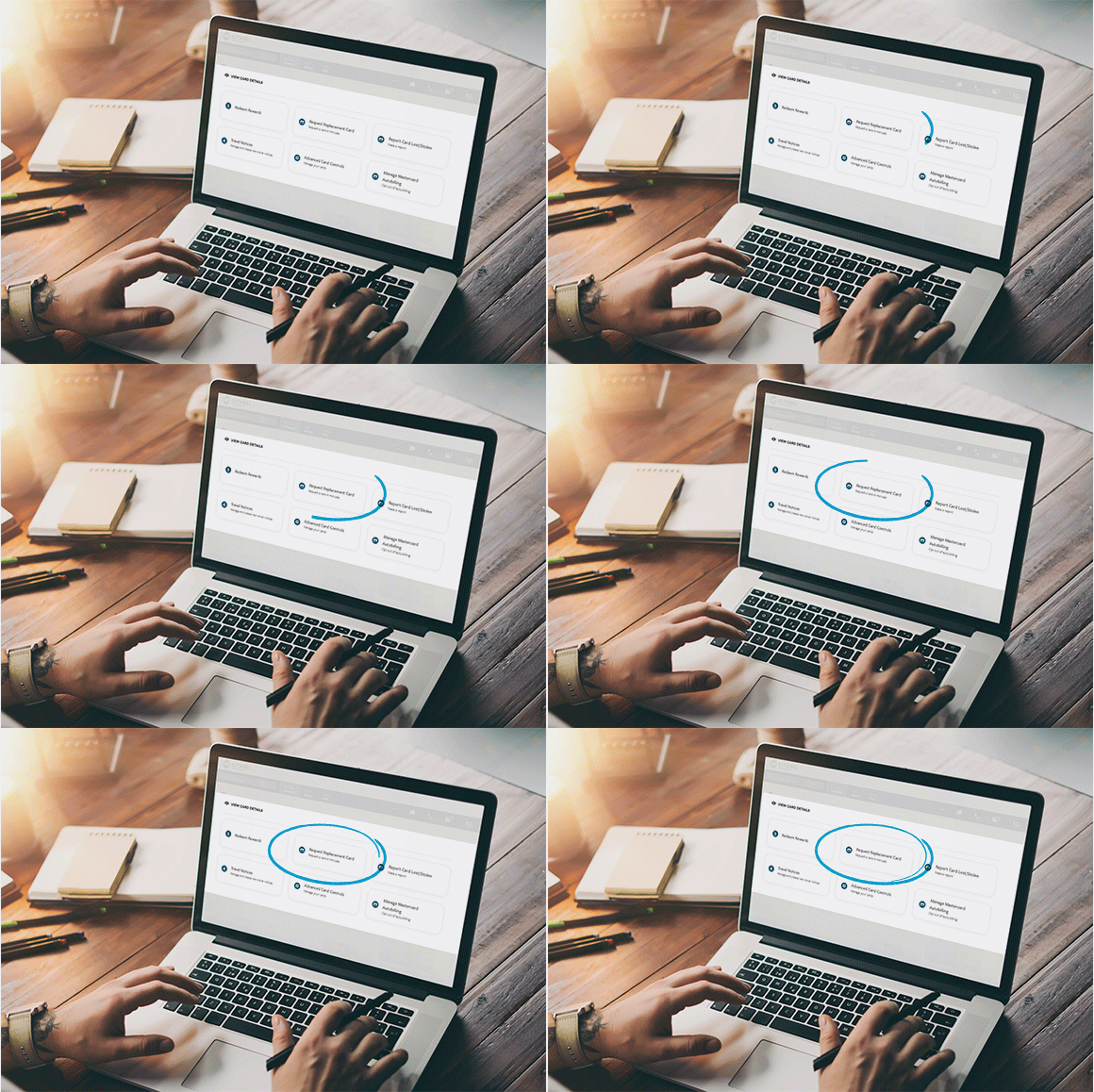
If your card is damaged or worn out, you can request a replacement in Online & Mobile Banking. Just open Card Services and select your card to order a new one.
Your card will be sent to the address on your account, and you should receive it within 7-10 business days. New cards are mailed from our processor and we are unable to track them.
If you need a new physical card sooner, stop by any branch and we’ll get you on your way quickly.
Lost and Stolen Cards
If your card is lost or stolen, take action to protect your account and prevent fraud.
The fastest way to secure your information is through Online & Mobile Banking. Acting quickly helps stop unauthorized charges and limits your risk.
If your card is lost (you may find it):
- Use Card Controls in Online & Mobile Banking to temporarily turn your card off
- Retrace your steps and check common locations
- If you find your card, you can easily turn it back on
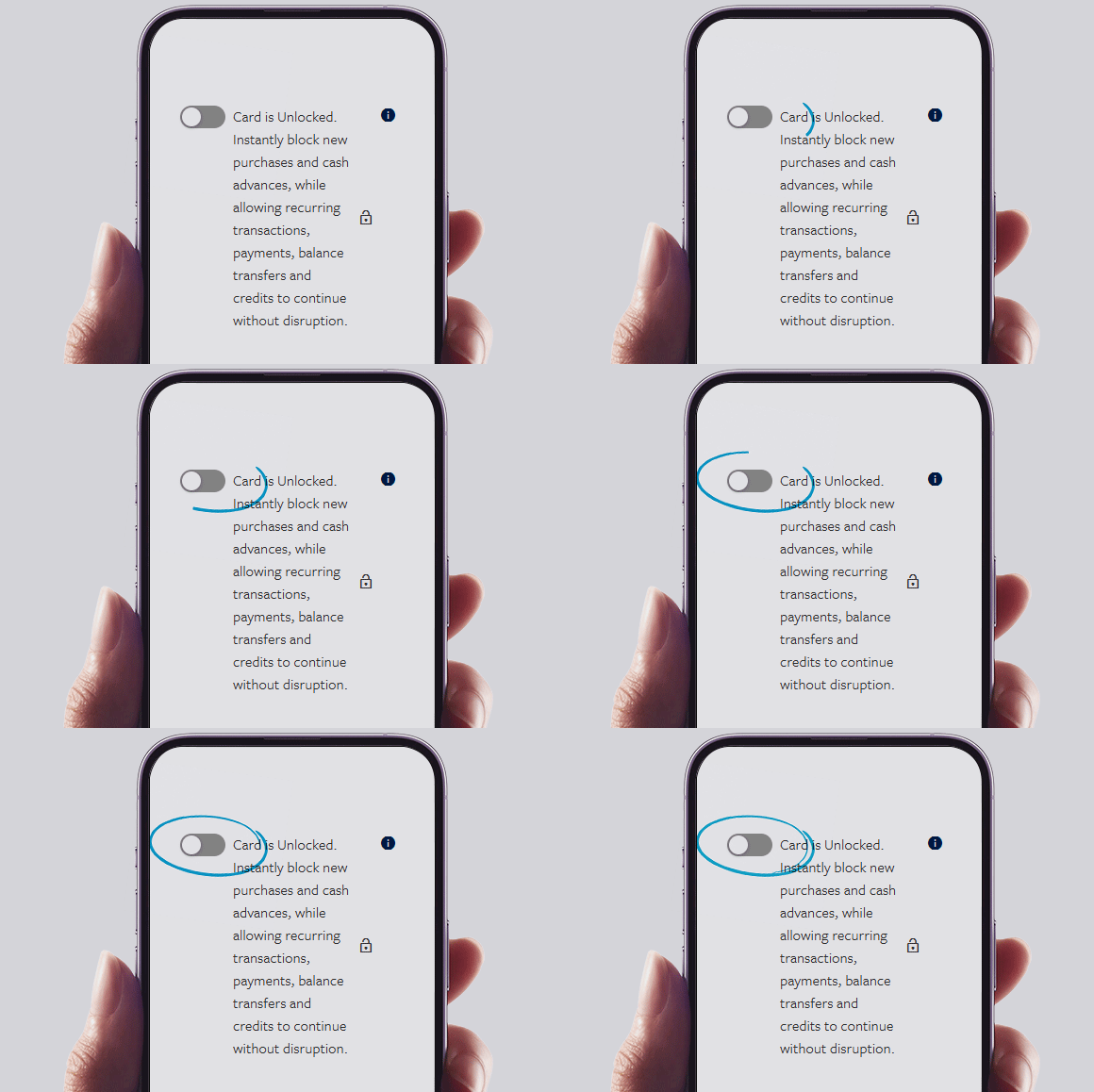
If your card is stolen:
- Report it immediately in Online & Mobile Banking
- We’ll block the card to prevent any new transactions
- Request a replacement card during the reporting process
If you don’t have access to Online & Mobile Banking, call us immediately at (800) 666-0191.
What happens next
Once your card is reported, we’ll close it and issue a replacement card, which typically arrives within 7–10 business days. Please note:- Cards can only be mailed to the address we have on file, and they will not be forwarded. If you need to update your contact information, follow these instructions.
- We are unable to provide tracking information from our card processor.
- Your old card will no longer work once it’s reported, and your replacement card will have new details.
In many cases, you can view your new card details right away in Online & Mobile Banking, so you can continue making purchases or add your card to your digital wallet without waiting for it to arrive.
If you need a physical card sooner, you can visit a Citadel branch to receive a new one in just a few minutes.
Be sure to update any recurring payments or subscriptions with your new card details to avoid service interruptions.
Stay Alert
Check your account activity
- Continue monitoring your account for unusual activity
- Report any charges you don’t recognize, even small ones
- Review your credit report any time for free in Online & Mobile Banking.
Take extra steps to protect yourself
- Turn on account alerts to track transactions in real time
- Use Card Controls in Online & Mobile Banking to manage your card anytime
- Be cautious of unexpected emails, calls, or texts requesting personal information
For more important information on how to protect yourself and your private financial information, check out our Security resources.
In Citadel's Online & Mobile Banking, you can set up custom account alerts for things like balances, checks, loans, logins, and transactions via push notification, email, or text message. Get notified about security alerts, due date reminders for payments, and more. You decide which alerts to get for each account, how often, and what time you receive them.
To set up, modify, or turn off personalized alerts for your account, watch this video or follow the directions below.
💻 On desktop:
- Log into your account.
- Select the three dots (…) on the right from the menu at the top.
- Select Alerts.
- Set the alerts you want to receive and how you want to receive them: email, text, and/or push notification.
📱 On mobile:
- Log into your account.
- Select Menu from the bottom right.
- Select Alerts.
- Set the alerts you want to receive and how you want to receive them: email, text, and/or push notification.
If you’re not set up in Online & Mobile Banking, you can enroll here.
Still have questions? Get in touch using one of the options here.